Showing posts with label PostgreSQL. Show all posts

Logfile Maintenance in PostgreSQL
Logfile Maintenance in PostgreSQL


- Save the database server's log output somewhere,
- Need to "rotate" the log files so that new log files are started and old ones removed after a reasonable period of time.
- Only way to truncate the log file is to stop and restart the server.
- Better approach is to send the server's stderr output to some type of log rotation program. There is a built-in log rotation program, which you can use by setting the configuration parameter logging_collector to true in postgresql.conf
- To managing log output is to send it all to syslog and let syslog deal with file rotation. To do this, set the configuration parameter log_destination to syslog (to log to syslog only) in postgresql.conf
Installation and Uninstallation of PostgreSQL Database Cluster on Linux

+++++++++++++++++++++++++++++++++
Installation PostgreSQL Database Cluster
+++++++++++++++++++++++++++++++++
1.Check yum is install or not
# cd /etc/yum.repos.d
2. Check internet pinging or not
# ping www.google.com
3. Installation through YUM
3.1: Go to the link and follow instructions
https://www.postgresql.org/download/linux/redhat/
4. Run the following command:
service postgresql-9.6 initdb #initialise postgresql 9.6 database
chkconfig postgresql-9.6 on #For autostart postgresql
service postgresql-9.6 start #Starting Postgresql cluster
5. Verify the services
ps -ef | grep postmaster
ps -ef | grep postgres #These will show running process
6. Connecting to the postgresql cluster database
# su - postgres
$ psql
/l #list the database
7. Stopping the database cluster
Service postgresql-9.6 stop
++++++++++++++++++++++++++++++++++
Uninstallation of PostgreSQL Database Cluster
++++++++++++++++++++++++++++++++++
1. Start postgreSQL database cluster
service postresql-9.6 start
2. Connect to PostgreSQL Cluster and get the data dir. location by running following query:
# su - postgres
$ psql
postgres=#
postgres=# select s.name, s.setting, s.short_desc from pg_settings s where s.name='data_directory';
3. Connect to root user
$ su - root
4. Stop the running services
# service postgresql-9.6 stop
5. Verify services are stopped or not
ps -ef | grep postmaster
ps -ef | grep postgres
6. Remove data directory
data dir location: /var/lib/pgsql/11/data
cd /var/lib/pgsql/
rm -rf 11
7. Remove user
# userdel postgrese
Remote access from PgAdmin Console to PostgreSQL Database
What is pgAdmin?

Download pgAdmin for Windows
https://www.postgresql.org/ftp/pgadmin/pgadmin4/v4.0/windows/
Lets say the PostgreSQL-11 database is installed on Linux Servers and want to manage the postgreSQL database through pgAdmin Console.
Enabling Remote connection to PostgreSQL database
1-Goto the following location as postgres user
su - postgres
cd /var/lib/pgsql/11/data
2- Edit host based authentication configuration file (pg_hba.conf) and add following lines:
host all all XX.XX.XX.XX/32 trust
Note: XX.XX.XX.XX will be the client IP from where the connection will reach to database server.
3- Edit Configuration file(postgresql.conf) and do following changes in CONNECTION AND AUTHENTICATION Section
listen_addresses = '*'
port = 5432
Note: Uncomment these two parameters and listen_address value is * means it will listen the incoming connection from any IP.
Reload the cluster: pg_ctl -D $PGDATA reload
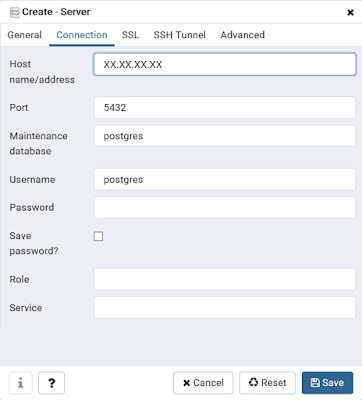
4- Start pgadmin console, right click on server in the left pane --> Create --> Server, then add the following entries as given in the picture:


PgAdmin tool is development and administration platform for PostgreSQL database, manages the database PostgreSQL 9.2 and above. It may be run either as a web or desktop application. PgAdmin provides a powerful GUI that simplifies the creation, maintenance and use of the database object.

Download pgAdmin for Windows
https://www.postgresql.org/ftp/pgadmin/pgadmin4/v4.0/windows/
Lets say the PostgreSQL-11 database is installed on Linux Servers and want to manage the postgreSQL database through pgAdmin Console.
Enabling Remote connection to PostgreSQL database
1-Goto the following location as postgres user
su - postgres
cd /var/lib/pgsql/11/data
2- Edit host based authentication configuration file (pg_hba.conf) and add following lines:
host all all XX.XX.XX.XX/32 trust
Note: XX.XX.XX.XX will be the client IP from where the connection will reach to database server.
3- Edit Configuration file(postgresql.conf) and do following changes in CONNECTION AND AUTHENTICATION Section
listen_addresses = '*'
port = 5432
Note: Uncomment these two parameters and listen_address value is * means it will listen the incoming connection from any IP.
Reload the cluster: pg_ctl -D $PGDATA reload
4- Start pgadmin console, right click on server in the left pane --> Create --> Server, then add the following entries as given in the picture:


In Hostname give the IP address of the PostgreSQL Database Server, Add port which you have configured in postgresql.conf, then click on save and your connection will be created.

Subscribe to:
Posts
(
Atom
)
